'/%3E%3C/svg%3E)
'/%3E%3Cpath%20fill='%23b2b2b2'%20d='M241%20382q0%2016%2017%2026%2017%2011%2042%2011t42-11q16-11%2017-26V269H241'/%3E%3Cpath%20fill='%239f7e00'%20d='M241%20379q0%2014%208%2023%209%209%2021%209%2014%200%2021-9%209-9%209-23V269h-59'/%3E%3Cpath%20d='M241%20339v-70h59v110q0%2014-9%2023l-6%205v-68h-15v72q-8%200-14-4v-68zm59%2040c0%2022%2015%2032%2029%2032%2021%200%2030-18%2030-32v-40h-59'/%3E%3Cpath%20fill='%239f7e00'%20d='M266%20277v5h2v12h-3v-5h2v-5h-9v5h2v5h-4v9h3v18h-5v10h34v-10h-5v-18h3v-9h-4v-5h2v-5h-9v5h2v5h-3v-12h2v-5zm42%20101q0%2010%206%2017%206%206%2015%207%2010-1%2016-7%206-7%206-17v-29h-43'/%3E%3Ccircle%20fill='%230044ad'%20cx='329.5'%20cy='372'%20r='6'/%3E%3Cellipse%20fill='%230044ad'%20cx='300'%20cy='340'%20rx='16'%20ry='21'/%3E%3C/svg%3E)




From a business continuity perspective, it is common for companies to deploy a secondary Internet connection to maintain operations when their primary connection fails. The objective seems straightforward: if one connection goes down, the router switches to the other, allowing users to regain access to their applications. However, another important question must be considered during network design: what happens to security filtering during this transition?
In a network with two Internet Service Providers (ISPs), maintaining connectivity and enforcing security policies are closely related objectives. The backup connection must allow employees to continue working while preserving the Internet access controls established by the organization.
Integrating FlashStart with MikroTik makes it possible to incorporate DNS filtering into this scenario. With the right configuration, the router can continue using the filtering service when the secondary WAN connection becomes active. This article explains how to implement this integration using DNS over HTTPS, which technical aspects to consider, and how to verify that security policies remain enforced after a connection failover.
Two Internet Connections, One Consistent Security Policy
A Dual WAN configuration connects a router to two separate Internet connections. These can operate in a primary-backup configuration or distribute specific connections across both links. In this article, we will focus on the first scenario: automatic failover.
Consider an office that uses a fiber connection as its primary Internet access and a second ISP as its backup. Under normal conditions, employees access their applications and services through the fiber connection. If that connection becomes unavailable, the MikroTik router switches to the backup link to restore connectivity.
From a business perspective, the priority is to ensure that employees can continue working. From a security perspective, it is equally important to verify that browsing restrictions and domain-blocking policies remain active.
Switching WAN connections may also change the public IP address used for outgoing traffic. This matters when a security service identifies a network based on its public IP address. Therefore, before configuring any rules, it is important to determine how FlashStart will identify DNS queries originating from the network and how those queries will reach its platform.
What FlashStart Adds to a MikroTik Network
MikroTik manages network functions such as routing, Network Address Translation (NAT), and firewall rules. FlashStart adds a DNS filtering layer that enables administrators to enforce security policies on the domains requested by network devices.
This separation provides a practical architecture: MikroTik maintains network connectivity, while FlashStart applies filtering policies to the DNS queries it receives. For businesses, the advantage is the ability to integrate DNS-based security controls into their existing infrastructure, with consistent policy enforcement across both primary and backup connections.
It is also important to clarify the scope of DNS filtering. DNS filtering does not route all web traffic to the cloud for content inspection. In the integration described here, FlashStart operates at the domain name resolution level. It provides an additional security layer that complements the firewall and other security measures implemented by the organization.
In fact, integrating FlashStart with Deep Packet Inspection (DPI) routers is one of the recommended deployment approaches for certain industries and use cases. Understanding this distinction helps design solutions that meet customers’ requirements while communicating their benefits without overstating the level of protection provided.
Why Use DNS over HTTPS for This Integration?
DNS over HTTPS (DoH) transports DNS queries over an encrypted HTTPS connection. In this scenario, the MikroTik router receives DNS requests from office devices and uses DoH to communicate with FlashStart.
Encryption protects DNS communications between the router and the DNS service. It does not automatically encrypt every segment of the network or replace application-level security, but it provides confidentiality for DNS queries transmitted to the provider.
For network administrators, this architecture offers a clearly defined control point: client devices send their DNS queries to the MikroTik router, which forwards them to the DoH endpoint assigned by FlashStart.
The official FlashStart DoH guide for MikroTik describes how to configure the certificate and the corresponding endpoint URL.

Designing a Simple and Consistent DNS Resolution Path
Before entering any commands, it is important to understand the path DNS queries will follow.
The architecture proposed in this article works as follows:
- Client devices use the MikroTik router’s LAN IP address as their DNS server.
- The MikroTik router responds using information stored in its DNS cache or sends queries to FlashStart via DoH.
- The router’s connection to FlashStart uses the available WAN interface according to the configured failover rules.
This approach avoids a common configuration mistake: enabling DoH on the router while simultaneously redirecting users’ DNS requests directly to a public DNS server over port 53. In that scenario, redirected queries bypass the MikroTik DoH resolver.
The configuration should follow a consistent architecture. If the objective is to centralize DNS resolution on the MikroTik router and securely forward queries to FlashStart, client devices must use the router’s local DNS service.
Preparing MikroTik and Both Internet Connections
For this configuration, we assume that the network uses RouterOS v7 and that WAN failover has already been configured.
This guide focuses on integrating DNS filtering. The specific WAN configuration will depend on the available Internet connections and the existing network topology.
As an example, we will use the following network configuration:
- LAN subnet:
192.168.88.0/24 - MikroTik LAN IP address:
192.168.88.1
These values are provided for illustration purposes and should be adapted to the actual deployment environment.
Before enabling the service, verify that the router itself can access the Internet through both WAN connections. Checking that a client computer can browse the Internet is not sufficient: the MikroTik router initiates the DoH connection and must have a valid route to reach the service.
Also verify that the system date and time are correct, that time synchronization works after a reboot, and that a configuration backup is available.
A structured deployment process makes troubleshooting easier and allows administrators to roll back changes if an issue occurs.
Configuring the Connection to FlashStart
The FlashStart configuration guide includes downloading and importing the root certificate required for its procedure:
/tool fetch url=https://download.flashstart.com/fs_rootca/fs_rootca.pem
/certificate import file-name=fs_rootca.pem passphrase=””
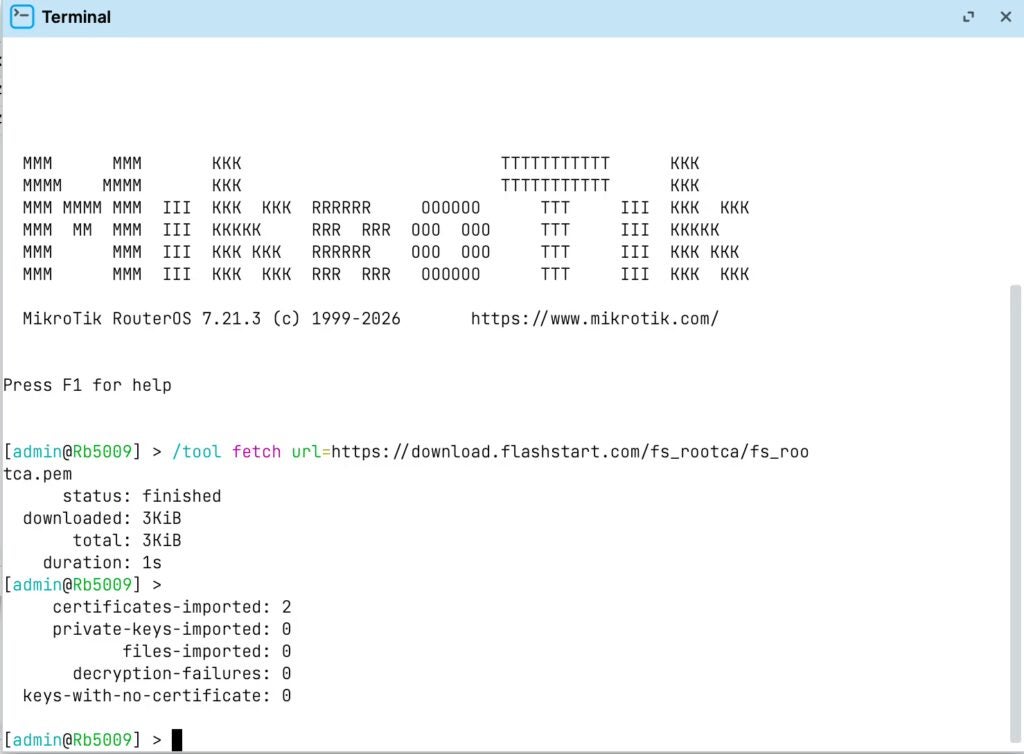
Verify the certificate’s source and the requirements applicable to your RouterOS version before importing it.
Current RouterOS versions include built-in root certificates, so not every version or service requires the same certificate import procedure. Refer to the MikroTik certificate documentation for further details.
Next, configure the DoH URL assigned to your installation. You can find this URL in the DOH section of your FlashStart administration dashboard.
Replace CODIGO_DEL_PANEL with the actual value provided in your dashboard:
/ip dns set use-doh-server=”https://doh.flashstart.com/CODIGO_DEL_PANEL” verify-doh-cert=yes
Once the configuration is complete, you can verify the settings in the IP/DNS section.
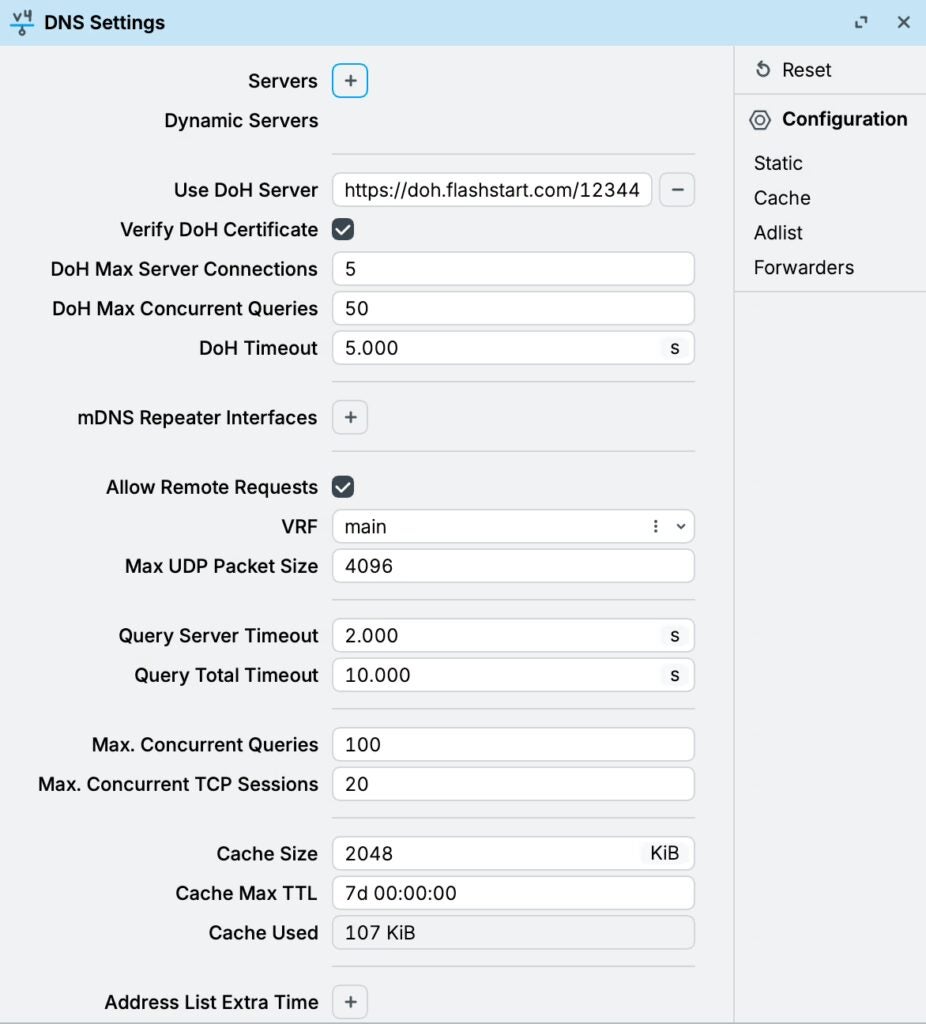
Certificate validation should remain enabled. If the connection fails, check the system time, certificate trust chain, and network connectivity. Disabling certificate verification should not be used as a routine workaround for configuration issues.
Another important consideration is that the router must resolve doh.flashstart.com before establishing the DoH connection. Make sure an appropriate bootstrap DNS resolution mechanism is available. Removing all conventional DNS servers without providing an alternative may prevent DoH from initializing correctly.
MikroTik documents the use of conventional DNS servers or a static DNS entry for this initial resolution process. Its DNS documentation also specifies that a DoH failure does not automatically trigger a fallback to conventional DNS for general queries. These behaviors must be considered during deployment.
Configuring Client Devices to Use the Router as Their DNS Server
To allow the MikroTik router to handle DNS queries from client devices, enable its DNS service.
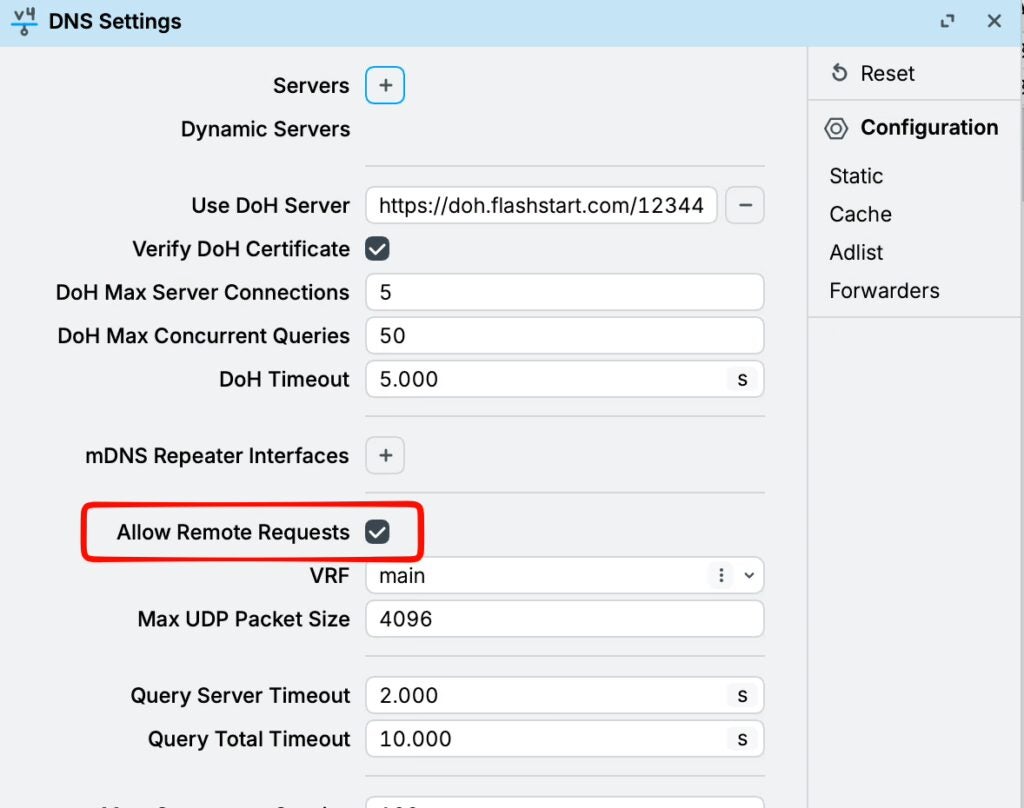
Configure DHCP to advertise the router’s LAN IP address as the DNS server. In our example, this address is 192.168.88.1.
Client devices must renew their DHCP leases to receive the updated settings. Before enabling the service, review the firewall access rules. The firewall must allow TCP and UDP traffic on port 53 from authorized networks while blocking DNS requests originating from the Internet. Because the DNS service runs directly on the router, the relevant firewall chain is input.
This distinction is important: enabling DNS resolution for internal users does not mean the service should be accessible through either WAN interface.
MikroTik documentation explains how to prevent the router from operating as an open DNS resolver. In a simple LAN configuration, you can also redirect conventional DNS queries that clients attempt to send to external DNS servers back to the router:
/ip firewall nat
add chain=dstnat in-interface-list=LAN protocol=udp dst-port=53 action=redirect to-ports=53 comment=”DNS UDP de LAN al router”
add chain=dstnat in-interface-list=LAN protocol=tcp dst-port=53 action=redirect to-ports=53 comment=”DNS TCP de LAN al router”

These rules are IPv4 examples. The LAN interface list must include the appropriate interfaces, and any internal DNS servers or authorized exceptions must be accounted for before applying these rules. Also review their position relative to existing firewall rules.
Do You Need to Change Anything in FlashStart When an ISP Connection Fails?
If MikroTik failover is already configured to allow the router itself to access the Internet through either WAN connection, there is no need to modify the FlashStart DoH configuration when the primary WAN goes down.
The router will use the backup connection to reestablish communication with the same DoH endpoint URL. For example, if an office uses fiber as its primary connection and 4G as its backup, DNS queries sent to FlashStart can be routed through the 4G connection when MikroTik detects a fiber outage.
The transition may require a few seconds, depending on how quickly the failure is detected and connectivity is restored. Routing adjustments are only necessary if existing rules force traffic originating from the router to use a specific WAN interface exclusively.
For this reason, before considering the deployment complete, disconnect the primary connection and verify that both DNS resolution and the blocking of a test domain continue to work correctly.
You can also verify the routing behavior in the IP/Routes section.
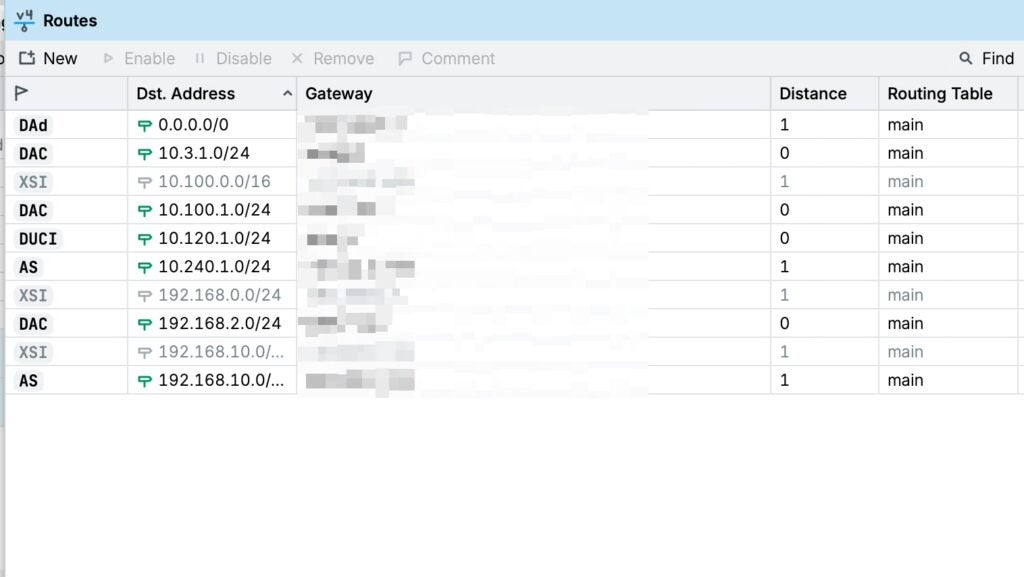
How to Verify That DNS Protection Remains Active
An effective test should verify both service availability and security policy enforcement.
Prepare one permitted domain and another domain that you have explicitly blocked for testing purposes. There is no need to visit actual malicious websites.
Start with the primary WAN connection active. Verify that the permitted domain resolves correctly and that the blocked test domain receives the expected response.
Next, simulate a controlled failure of the primary connection and repeat the DNS queries once the backup connection becomes active. Remember to account for DNS caching at different levels, including the router, operating system, and browser. A cached response may make a test appear successful even though no new DNS query has been sent.
Compare your observations with the logs available in FlashStart and any DNS errors reported by MikroTik. Record the recovery time and any manual intervention required. This information will be useful for future maintenance and for explaining the service’s failover behavior to customers.
Limitations to Consider
Redirecting port 53 does not cover every possible DNS resolution method. Browsers and applications may use their own encrypted DNS services, while VPN connections may route traffic outside the intended DNS resolution path.
IPv6 also requires specific consideration: the IPv4 rules shown in this example do not establish equivalent policies for IPv6 traffic. These aspects must be addressed as part of the overall network architecture and endpoint management strategy, depending on the level of control required by the organization.
Extend DNS Filtering to Your Backup Internet Connection
Integrating FlashStart with MikroTik makes it possible to include DNS filtering in a company’s business continuity architecture.
This combination is particularly useful when the goal is to ensure that backup Internet connectivity maintains the same browsing policies applied during normal operations.
The key is to maintain a consistent DNS resolution path: client devices query the router, DoH is correctly configured, and routing rules allow FlashStart to be reached through either WAN connection.
A complete failover test should demonstrate that DNS resolution is restored and that previously blocked domains remain subject to the same filtering policies.
Are you deploying a MikroTik network with two Internet connections? Explore FlashStart‘s capabilities and plan the integration around both WAN interfaces from the outset. This approach allows you to evaluate DNS filtering within your actual network environment and make your backup connection a tested component of your business continuity strategy.