'/%3E%3C/svg%3E)
'/%3E%3Cpath%20fill='%23b2b2b2'%20d='M241%20382q0%2016%2017%2026%2017%2011%2042%2011t42-11q16-11%2017-26V269H241'/%3E%3Cpath%20fill='%239f7e00'%20d='M241%20379q0%2014%208%2023%209%209%2021%209%2014%200%2021-9%209-9%209-23V269h-59'/%3E%3Cpath%20d='M241%20339v-70h59v110q0%2014-9%2023l-6%205v-68h-15v72q-8%200-14-4v-68zm59%2040c0%2022%2015%2032%2029%2032%2021%200%2030-18%2030-32v-40h-59'/%3E%3Cpath%20fill='%239f7e00'%20d='M266%20277v5h2v12h-3v-5h2v-5h-9v5h2v5h-4v9h3v18h-5v10h34v-10h-5v-18h3v-9h-4v-5h2v-5h-9v5h2v5h-3v-12h2v-5zm42%20101q0%2010%206%2017%206%206%2015%207%2010-1%2016-7%206-7%206-17v-29h-43'/%3E%3Ccircle%20fill='%230044ad'%20cx='329.5'%20cy='372'%20r='6'/%3E%3Cellipse%20fill='%230044ad'%20cx='300'%20cy='340'%20rx='16'%20ry='21'/%3E%3C/svg%3E)




In hospitality settings, it’s very common for a guest to connect their phone to the Wi-Fi to check a booking. In an office, a supplier uses the guest network to access a presentation. These are everyday situations that share one need: offering a simple connection without giving access to the organization’s internal systems.
Creating a network called “Guests” is only the beginning. You also need to decide which resources its users can reach, how to prevent them from communicating with other devices, and which browsing policy will apply. A different password, on its own, doesn’t solve these issues.
MikroTik and FlashStart make it possible to address these needs in a complementary way. MikroTik organizes network access and communications; FlashStart provides DNS filtering to apply controls over the domains being queried. In this practical case, we’ll see how to combine both functions for a guest network in a hotel and how to adapt the same approach to an office.

The scenario: a hotel with reception, administration and guests
Imagine a 30-room hotel with several access points, a managed switch and a MikroTik router as its Internet gateway. Let’s simulate this design.
Reception uses a hotel management system, administration accesses internal documentation, and guests connect smartphones, laptops and tablets. Management wants to offer Internet access while keeping these devices separate from business equipment.
To achieve this, we propose three networks:
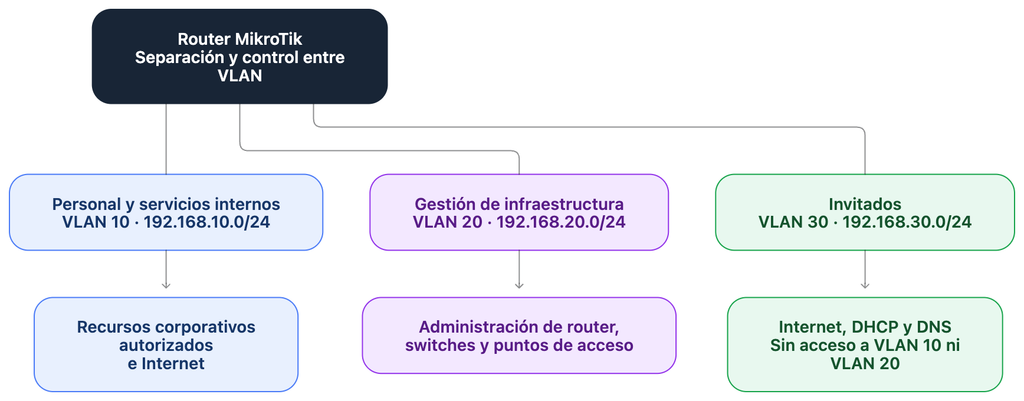
The addresses and identifiers are fictitious. Before using them, check that they don’t overlap with other networks in the installation or with subnets reachable via VPN.
In an office, the same design would make it possible to separate visitors from employees and servers. The usage policy would change, but the principle would remain the same: connecting a visitor must not give them access to work resources.
What each part of the solution contributes
MikroTik is responsible for assigning IP addresses, routing traffic and applying firewall rules. Access points and switches carry the VLANs and must apply the appropriate isolation within the wireless network.
FlashStart makes it possible to define filtering policies on the domains being queried, including protection against domains identified as malicious and category-based controls. Its policies also support exceptions to allow or block specific domains, according to the organization’s needs. These features are described in FlashStart’s policy documentation.
For the venue, this combination makes it possible to build a guest service with defined, verifiable controls. For example, keeping booking, transport and video-call services accessible while restricting the categories management has decided to exclude.
DNS filtering complements network separation. It doesn’t replace the firewall, nor does it on its own analyze every downloaded file or the content of each HTTPS session. Likewise, a separate VLAN doesn’t determine which domains its users can visit. Each component solves part of the problem.
Step 1. Assign the guest Wi-Fi to a dedicated VLAN
On the access points, create an SSID such as Hotel-Guests and assign it to VLAN 30. The links between the APs, the switch and the router must carry this VLAN correctly.
The specific configuration depends on the AP manufacturer and, with MikroTik, on the model and wireless package used. For this reason, the example assumes a Layer 3 interface called vlan30-guests already created on the router and VLAN transport verified end to end.
Verify that a device connected to the guest SSID reaches only VLAN 30 and does not receive an address from the staff network. Check the allowed VLANs on trunk links and access ports: broadcasting two different SSIDs doesn’t guarantee that they end up in separate networks.
Step 2. Prepare addressing and DHCP
With vlan30-guests available, we can assign the router the address 192.168.30.1 and reserve a range for clients.
The client will receive an address from the range, use the MikroTik as its gateway and send it its DNS queries. The four-hour lease time is indicative: it should be adjusted to user turnover and the expected number of devices.
A room may have several connected devices. Size the range for the expected simultaneous occupancy, including common areas and events. If you need to expand it, review the subnet, pool, DHCP and any rules that use those addresses together.
Step 3. Protect the router and separate guests from the business network
There are two different destinations to control. DNS and DHCP queries go to the MikroTik itself; connections to the Internet or to another subnet pass through the router. In RouterOS, these correspond respectively to the input and forward chains, as explained in the firewall documentation.
The following blocks are an IPv4 baseline for the scenario described, without HotSpot. They should be integrated from a trusted management connection, with a backup and after reviewing existing rules. The WAN list must contain only the Internet-facing interfaces.
First, we create a dedicated chain for guest access to the router:
/ip firewall filter
add chain=guest-input connection-state=invalid action=drop
add chain=guest-input protocol=udp dst-port=67 action=accept comment="Guest DHCP"
add chain=guest-input protocol=udp dst-port=53 action=accept comment="Guest DNS UDP"
add chain=guest-input protocol=tcp dst-port=53 action=accept comment="Guest DNS TCP"
add chain=guest-input protocol=icmp action=accept comment="ICMP diagnostics"
add chain=guest-input action=drop comment="Block other router services"
add chain=input in-interface=vlan30-guests action=jump jump-target=guest-input place-before=0
With this design, guests can request network configuration and query DNS, but they cannot open WinBox, SSH or the router’s web administration via IP. Accepting ICMP is a choice made in this example to make diagnostics easier.
Also review Layer 2 services, such as MAC WinBox and neighbor discovery, to restrict them to management interfaces. The IP firewall doesn’t replace this control.
For traffic passing through the device, we block the private destinations in the example and then allow only outbound traffic via WAN:
/ip firewall address-list
add list=guest-no-destinations address=10.0.0.0/8
add list=guest-no-destinations address=172.16.0.0/12
add list=guest-no-destinations address=192.168.0.0/16
add list=guest-no-destinations address=100.64.0.0/10
/ip firewall filter
add chain=guest-forward connection-state=invalid action=drop
add chain=guest-forward dst-address-list=guest-no-destinations action=drop comment="No access to private networks"
add chain=guest-forward out-interface-list=WAN action=accept comment="Guests to Internet"
add chain=guest-forward action=drop comment="Block other destinations"
add chain=forward in-interface=vlan30-guests action=jump jump-target=guest-forward place-before=0
The list also prevents reaching many ISP devices with private addresses via the WAN. Add any other sensitive destinations, including public addresses used for administration. These four ranges are not a complete inventory of all possible special or internal destinations.
The jumps are placed at the top so that any earlier general accept rule doesn’t override the control. The general firewall must continue to allow replies to authorized connections and block unsolicited connections from the Internet. When making changes, also check FastTrack and existing connections. Don’t run these blocks more than once, as you would create duplicate rules.
Step 4. Prevent communication between guests
Separating guests and staff doesn’t necessarily prevent two guests from communicating with each other. If both devices are in the same VLAN, part of their traffic may pass through the AP or switch without going through the MikroTik’s IP routing.
Enable client isolation on the access points. In MikroTik’s WiFi menu, the client-isolation property is documented for isolating clients connected to the same AP. Check the WiFi documentation for your hardware and package.
Then test with two devices connected to different APs. Isolation on a single AP doesn’t prove that the whole network prevents communication between guests. If traffic crosses the switch, you’ll need an isolation mechanism compatible with that design, such as additional segmentation or properly configured port isolation.
For example, blocking a guest’s access to the reception computer and blocking access to the laptop in another room are two different checks. Both should be part of the service handover.
Step 5. Define the guest policy in FlashStart
Before enabling categories, agree on the experience the venue wants to offer. For our hotel, we propose a policy called Guests-Hotel: protection against malicious domains, selected content restrictions and justified exceptions for necessary services.
It’s not advisable to automatically apply an office’s productivity restrictions to guests. A video service or a social network may be part of the expected use of hotel Wi-Fi. In a meeting room, needs may be different.
An initial proposal could be:
| Objective | Configuration criterion |
| Reduce exposure to dangerous domains | Enable the threat protection available in the policy. |
| Tailor browsing to the venue | Select the categories management wants to restrict. |
| Keep essential services available | Check bookings, transport, email and meeting tools. |
| Resolve legitimate blocks | Review the domain and create a specific exception where appropriate. |
FlashStart lets you manage categories and exceptions; the content filtering documentation explains these options. For the integrator, this phase turns a technical configuration into a policy that the person managing the service can understand.
Step 6. Connect MikroTik to FlashStart via DoH
The path is simple: the guest queries the MikroTik, and the MikroTik queries FlashStart using DNS over HTTPS. Encryption applies to the segment between the router and the provider; it doesn’t automatically turn DNS communication between the client and the router into an encrypted connection.
The official FlashStart guide for MikroTik we consulted uses these commands for the certificate:
/tool fetch url=https://download.fsflt.com/fs_rootca/fs_rootca.pem
/certificate import file-name=fs_rootca.pem passphrase=""
After verifying the origin and trustworthiness of the certificate, configure the endpoint from your dashboard. The following code contains a placeholder you must replace:
/ip dns set use-doh-server="https://doh.fsflt.com/PANEL_CODE" verify-doh-cert=yes allow-remote-requests=yes
Use the exact URL provided for your installation and check that it is linked to the intended policy. Keep TLS validation enabled, the correct time set and HTTPS access from the router to the service.
The endpoint name needs initial resolution. Don’t remove all existing DNS servers without another mechanism to resolve it. Also, block TCP and UDP port 53 from the WAN interfaces in the general firewall, before any accept rule that could expose the service. MikroTik describes these requirements in its DNS documentation.
A guest policy isn’t selected just because a VLAN exists
The use-doh-server setting in this example belongs to the router’s resolver. If staff and guests use the same service, a different URL is not automatically chosen based on the source VLAN.
In our design, staff keep their own independent DNS service; the resolver configured here is used for guests and for the router’s own queries. If staff already relied on that resolver, assess the impact before changing it.
To offer different policies to multiple networks, design separate resolution points or identification mechanisms compatible with FlashStart. Creating two policy names in the dashboard isn’t enough if all queries arrive through the same endpoint without any further distinction.
Step 7. Redirect guests’ conventional DNS
A visitor can manually configure a different DNS server. To also send these conventional queries to the MikroTik, use rules limited to the guest interface:
/ip firewall nat
add chain=dstnat in-interface=vlan30-guests protocol=udp dst-port=53 action=redirect to-ports=53 comment="Guest DNS UDP to router"
add chain=dstnat in-interface=vlan30-guests protocol=tcp dst-port=53 action=redirect to-ports=53 comment="Guest DNS TCP to router"
Place them before any other NAT rules that match this traffic. With redirect, the query terminates at the router and can follow the configured DoH path. Redirecting it directly to a public IP on port 53 would be a different architecture.
These rules don’t capture browsers’ built-in DoH, VPNs or all encrypted DNS traffic. If you need additional control, define a specific policy and test its effect on users’ devices. Blocking HTTPS indiscriminately would prevent much legitimate browsing.
A guest service you can maintain
Once deployed, document who can change categories, how to request an exception and what to check when a user reports a block. For example, before allowing an entire category, identify the required domain and consider a limited exception.
Keep coverage, capacity and DNS resolution issues separate. If a client has a weak signal, changing FlashStart won’t improve their wireless link. If a query fails because of a certificate, increasing bandwidth won’t fix the problem.
This distinction makes support easier and helps the integrator offer concrete maintenance: reviewing the policy, checking isolation and validating the service after firmware or network changes.
Want to add DNS filtering to your hotel or office guest Wi-Fi? Explore FlashStart for Wi-Fi networks and plan the integration on a properly segmented network. With MikroTik managing access and FlashStart applying the DNS policy, you can offer a guest connection with defined controls and tests that prove it works.